Medal of Honor Allied Assault
The following guide contains detailed instructions intended to successfully setup Medal of Honor Allied Assault servers on Windows Server operating systems and Linux operating systems.
Download Medal of Honor: Revival Edition
Great news! Someone has released Medal of Honor: Revival Edition for free! It comes with Medal of Honor: Allied Assault, Spearhead, Breakthrough, community patches, the GameSpy fixer patch already applied, several handy utilities, and more! You can no longer buy a fully functional edition of the game anywhere, so get it for free now by visiting the MOHAA Revival Community.
Windows Server Guide
Before Starting:
- Install MOHAA to default directory.
- Make sure you have installed the 1.1 US patch - shown to the left.
- If using a router, unblock the required ports. See the screenshot to the right for a basic example.
Getting Started:
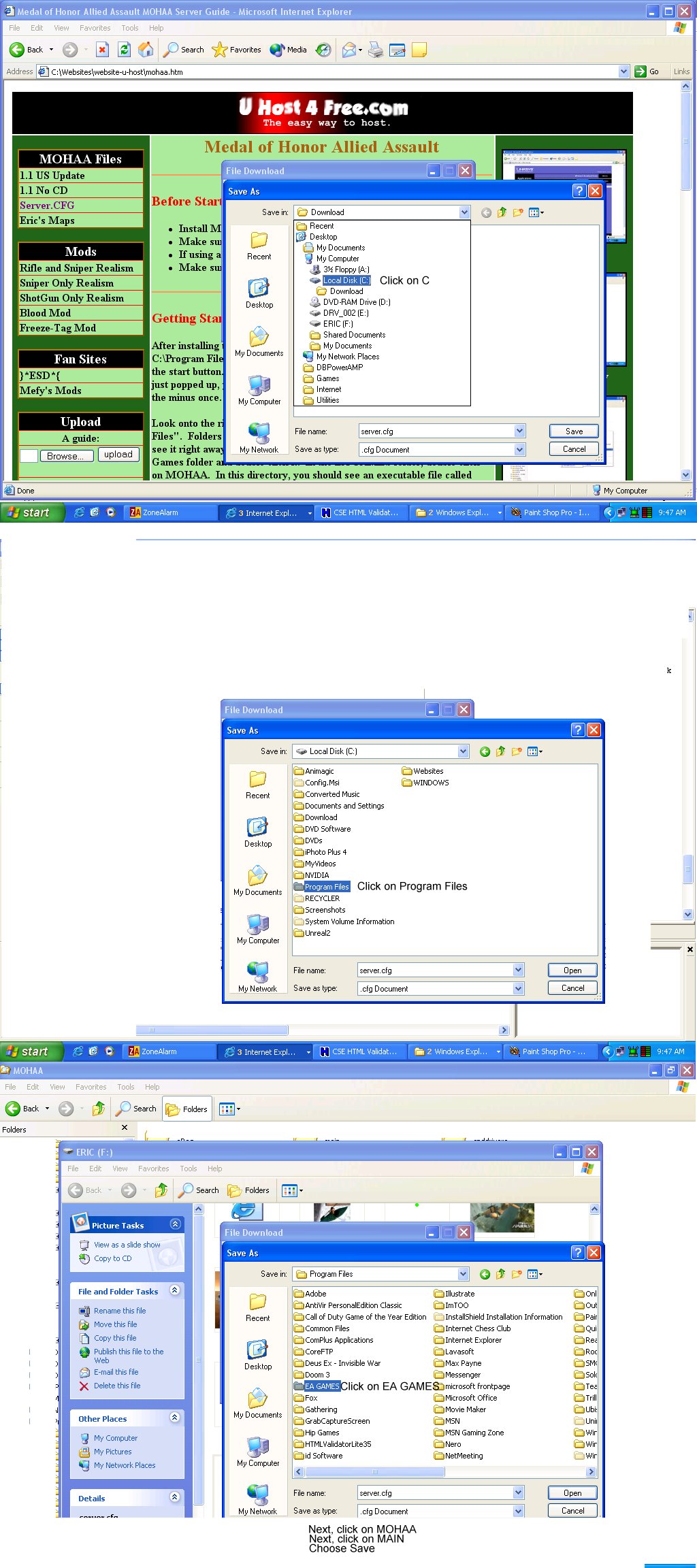
After installing the 1.1 US patch, the first thing to do is to "explore" to C:\Program Files\EA GAMES\MOHAA\MAIN. To do this right click on the start button. Next, choose explore. On the left side of the screen that just popped up, you should see a minus right next to the C: drive. Click on the minus once. Now, you are browsing the top directory of the C drive.
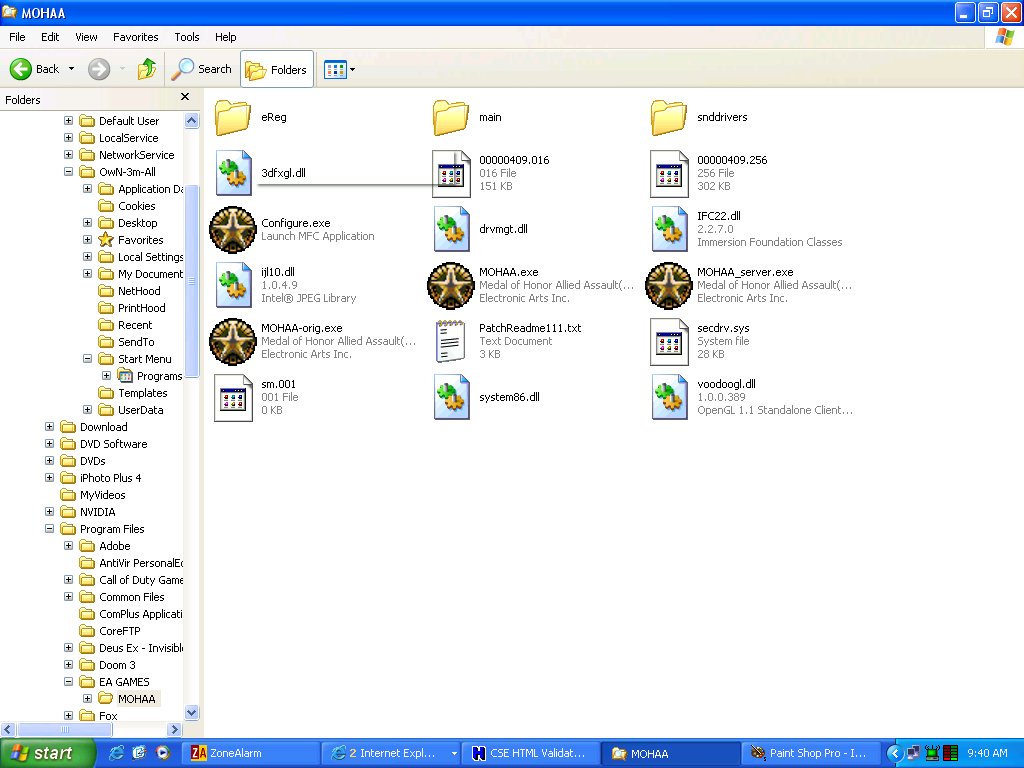
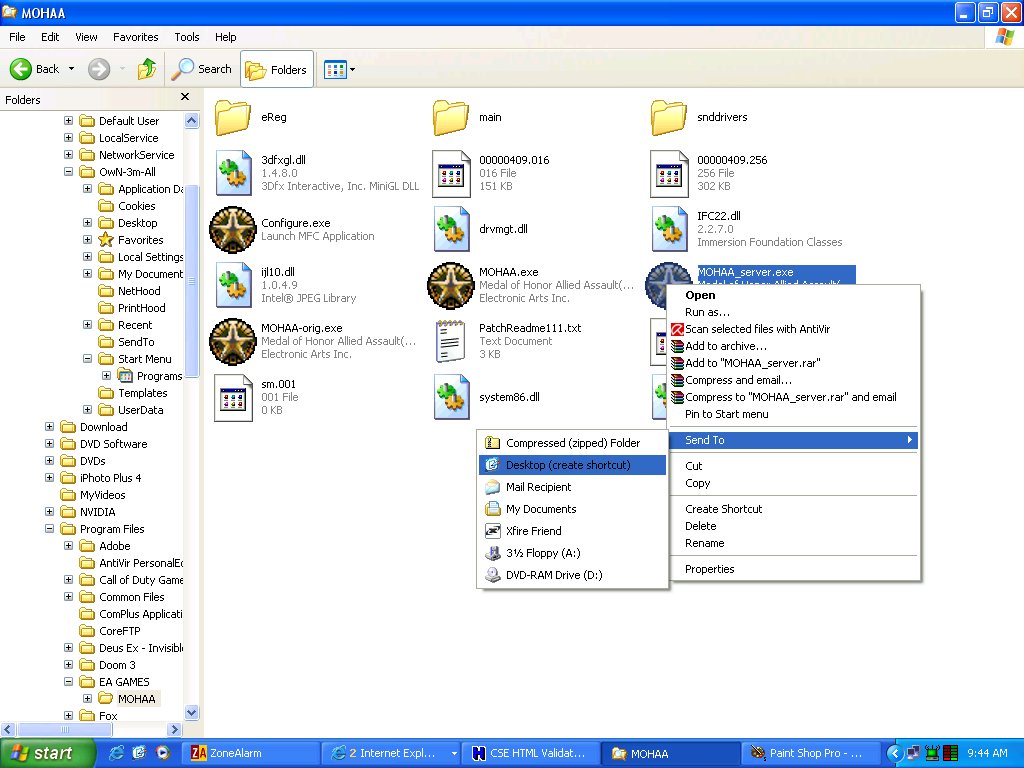
Look onto the right side, and you should see a folder called "Program Files". Folders are always in alphabetical order, so scroll down if you don't see it right away. Double click on "Program Files". Now, find the EA Games folder and double click it. In the EA GAMES folder, double click on MOHAA. In this directory, you should see an executable file called MOHAA_server.exe Right click on this .exe, choose send to, and then desktop. Once we have finished setting up, you can run your server by double clicking the new shortcut on your desktop.
Server Setup:
In order to first setup a server, you must download a file called "server.cfg". You can download the file by clicking here. When the download file box pops up, choose save. Save it to C:\Program Files\EA GAMES\MOHAA\MAIN. To do this, click on the down arrow to the right of "Save In" at the very top. Now, it's just like using explore. Read "Getting Started" if you are still lost.
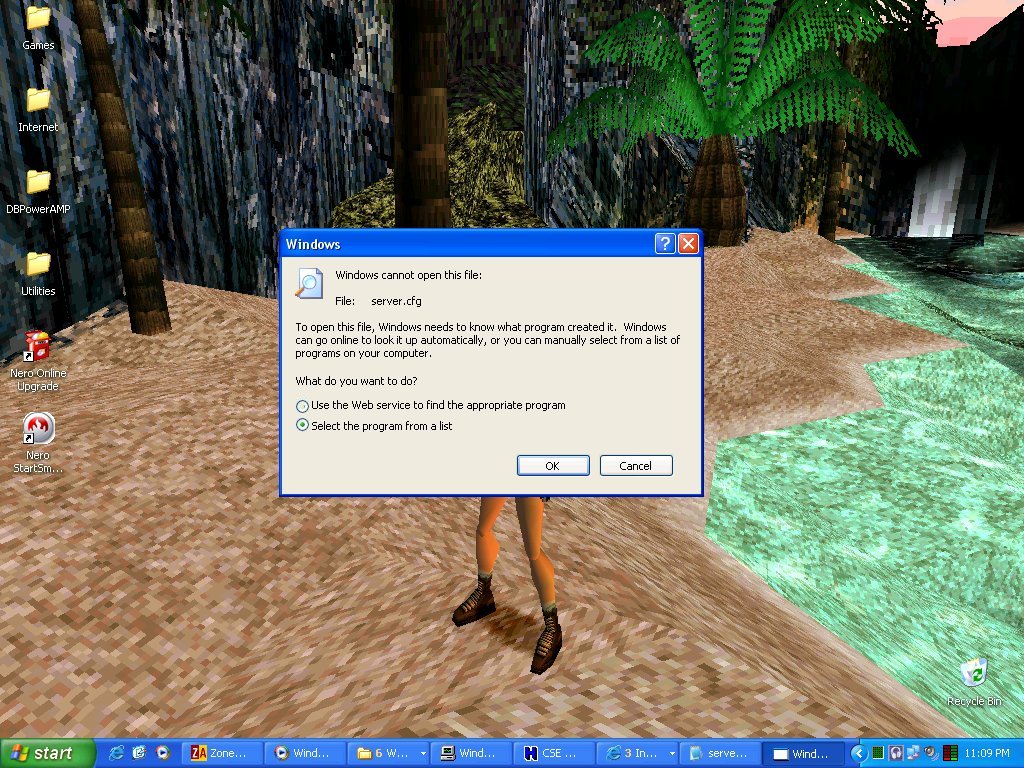
When the download is finished, don't close the file download box. Instead click on "Open". A new box opens, and Windows says the file cannot be opened. In the box that just popped up, bubble the second option that says "Select Program From a List" Hit OK. A new box pops up, and NotePad should already be highlighted. Make sure the box at the bottom is checked so that you won't have to do this again. Choose OK. Now, you can edit the server.cfg. The only important commands in this file are server name, maplist, and rcon.
Near the top of the server.cfg file, there should be a line with "seta sv_hostname". The name of your server goes inside the quotes to the right of this command. Next, scroll down until you see "// Server Passwords". Set your password in the quotes of the first line below "// Server Passwords". RCON allows you to insert commands, so you will definitely be using it. Scroll down towards the bottom. At the very end you should see "seta sv_maplist". Here, you can arrange, delete, and move the maps anyway you wish. However, if your server starts with an obj map, scroll up a little to "// Game Type Settings" and make sure the "seta g_gametype" is set to 3. If it's team match, set it to 2. If it's deathmatch, set it to 1. If it's roundbased, set it to 4. Underneath this, you'll see all possible levels, and you can specify what gametype you want to run for each level. See screenshots for locating this part. You can set the levels to the following:
- ctf - Cafture the Flag
- ft - Freeze-Tag - must have freeze-tag mod!
- obj - Objective
- dm - Deathmatch
- ffa - Free For All
After you have made all your changes, click on "File" and then click on "Save".
Next download one of Mefy's MOHAA mods if you want to be able to play Capture the Flag or Freezetag. Again save the file into the MAIN folder inside the MOHAA directory.
If you'd like to install any other mods, download them to the MAIN directory as well. All mods MUST go into this folder.
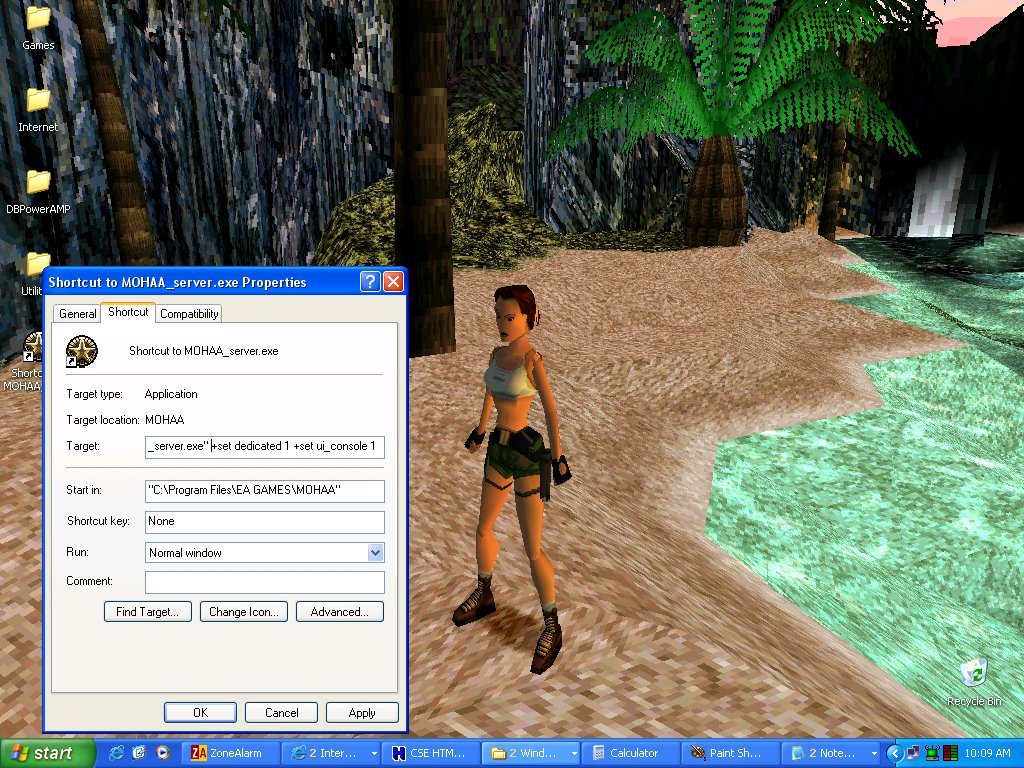
When you are done, go to your desktop, right click on our new shortcut, and choose properties. In the target field, place your cursor to the very right after the last quote, and copy and paste in the following commands:
+set dedicated 1 +set ui_console 1 +set sv_maxclients 64 +exec server.cfg
Now, hit ok. Double click your shortcut, and bam the server is running!
Commands:
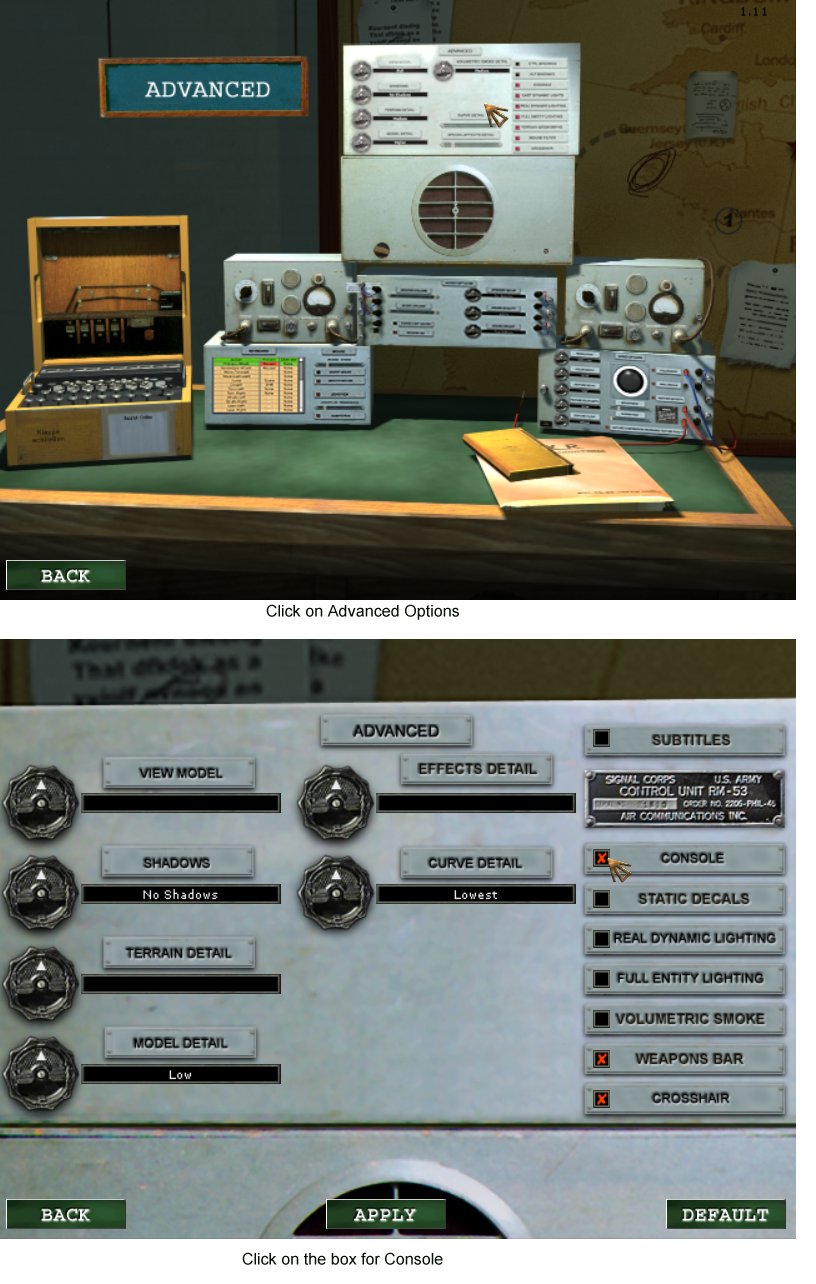
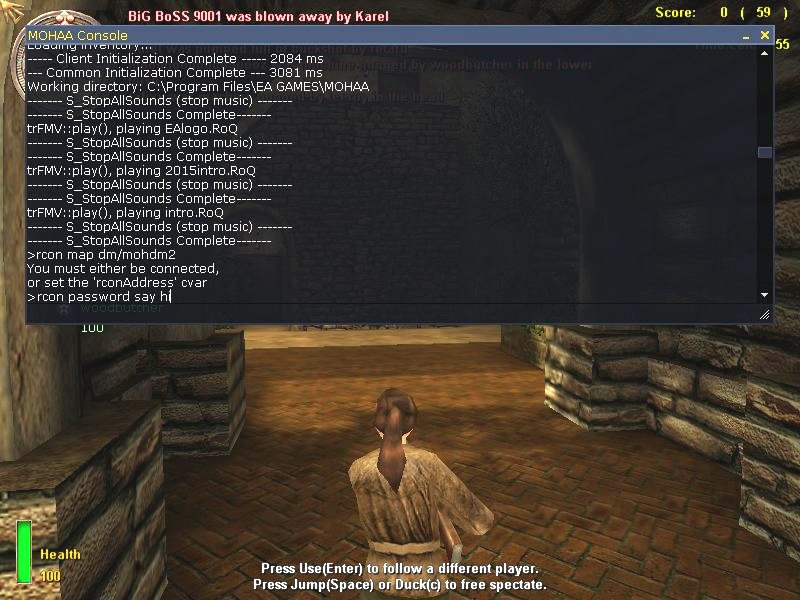
In order to run commands, you must first enable the console option in MOHAA's options. To toggle console on and off, press ` in game. Click here for help.
| Command |
Use |
| coord |
Displays your player's current X Y Z position coordinates. You must be alive for this command to work. Great for modding / placing items. |
| rconpassword yourpassword |
Keeps your rcon password saved while you play so that you don't have to type in the password when running a command. |
| rcon yourpassword say hi |
Displays a message in your server. |
| rcon yourpassword set sv_privateClients "20" |
Creates a private server with 20 slots for a match. |
| rcon yourpassword set sv_privatepassword "yourpw" |
Locks the server with the password of yourpw. |
| rcon yourpassword exec server.cfg |
Unlocks the server and reloads default settings. |
| rcon yourpassword set fraglimit "7" |
Sets the roundlimit before the map changes or a team wins. |
| rcon yourpassword set timelimit "0" |
Sets the timelimit to the default of 5 minutes. |
| rcon yourpassword sv_runspeed 700. |
Sets run speed. Default 250 |
| rcon yourpassword sv_gravity 0 |
Sets gravity. Default 800 |
More Commands
Server Ports:
The following ports must be open or forwarded in order for GameSpy to detect your MOHAA server:
- UDP: 12203, 12300, 6500, 6515, 13139, 27900
- TCP: 28900, 29900, 29901
- Optional UDP: 3783, 6667
If your server runs on a different port, such as 12204, you must forward this port and 12301. The GameSpy port number is your server's port number plus 97. For example, if your server runs on port 12205, your GameSpy port number is 12302.
Linux Server Guide
Running a MOHAA Linux Server:
Hosting a MOHAA server on Linux follows the same procedure listed above for a Windows server, with a few minor differences. Basically, you need a server.cfg containing your configuration settings, the MOHAA game files, and your server mods. A Linux MOHAA server operates the same as a Windows MOHAA server. Configs are executed and mods are still contained in a PK3 archive. However, you will need the Linux server binaries, as executable binaries from Windows do not work on Linux. The code was ported over officially by EA, and the binaries are available for download below:
MOHAA Server Linux Binaries:
MOHAA Linux Binaries
To install, simply copy the files in the MOHAA folder to your server's MOHAA folder and overwrite any existing files.
The three major linux binaries are named: fgameded.so, fgamededmohaa.so, and mohaa_lnxded
Start a MOHAA Server on Linux:
To start a MOHAA server, first browse to your server's MOHAA directory, and with the current directory set to your MOHAA directory, simply use the following command in your terminal:
./mohaa_lnxded +set dedicated 1 +set sv_maxclients 64 +set net_ip 0.0.0.0 +set net_port 12203 +exec server.cfg
Change the 0.0.0.0 in the command line to your server's IP address and port number if necessary.
That's all!
MOHAA Command Line Parameters
| Command |
Description |
| +set net_port 12205 |
Tells the server to use port 12205, useful for running multiple servers on the same IP. |
| +set net_ip 9.9.9.9 |
The server will bind to the IP address specified. |
| +set dedicated 1 |
Creates a dedicated server |
| +set sv_maxclients 64 |
Specifies the max number of players |
| +set sv_maxrate 5000 |
Each client's maximum rate is set to this value. Lower values can reduce ping. |
| +set net_noipx 1 |
Prevents certain forms of packet flooding |
| +exec server.cfg |
Execs specified config file. |
MOHAA Reborn 1.12 Patch
What is the Reborn 1.12 Patch?
Reborn is the unofficial 1.12 patch for Medal of Honor Allied Assault (MOHAA). It functions as a server-side patch which fixes several known exploits players can use to hack, crash servers, or ruin the game for others.
Reborn is also developing a client-side patch which will add new features such as server-initiated file downloads, checking players for unauthorized mods in stock mode (requiring players to play without custom mods), and more! Servers that run the Reborn patch are uncrashable and feature additional protections from invasive attacks including flooding. Reborn contains anti-wallhack features, contains anti-crash features, adds new event systems which can be used for mods, adds a new voting system, and more.
Reborn is here to return the control over MOHAA servers to administrators, the way servers were designed to be administrated. The Reborn patch is in constant development and has reached several significant milestones. If you are still not running Reborn, your servers are open to attack and abuse. Get the Reborn Patch today and help the MOHAA community flourish!
For more information about the Reborn 1.12 patch, please click here or visit the forums.
The following Reborn cvars are optimally set for the best Reborn experience and should be placed in your server.cfg configuration file:
//Reborn Patch Functions

set sv_antiwh "0"  // 6. Tweaked mode five 5.  Testing Better Accuracy Frame Prediction 4. Frame prediction 3. Bone Prediction  2. Hitbox A-WH ON  1.  Bone A-WH ON  0. Off
set sv_recoilemulation "0" // Turns off recoil emulation
set sv_stufftextdetection "0" // Turns off buggy stufftext
set sv_filterchat "0" // Doesn't filter chat
set sv_antistwh "0" // Turns off anti-shoot through wall protection (it's a bit laggy)
set sv_kickping "0" // Turns off autokick ping
set sv_kickbadcmd "1"  // kicks players for trying to crash your servers
set sv_banning "0"  // reads IP from text file
set sv_floodProtect "1" // Keeps people from flooding
set sv_maxconnperip "-1"  // Turns Feature OFF and lets multiple players from SAME IP connect
set sv_sounddistance "8000" // Disables sound protection
set g_teambalance "0"    // Doesn't force team balance
set sv_disablechat "0"  // Doesn't disable chat
set sv_updatedelay "168" // Checks for Reborn Updates every week
set sv_packetantiflood "0" // Disables packet flood protection so that Autokick, Foresight, or CI still work.  Set it to 1 if you're under attack.

// Optional Reborn Settings:

// set sv_updatetest "1" // Get latest experimental patch version
// set g_scripttrace "1"  // DEBUGS MORE

// Full list:

// Full list of optional Reborn cvars
// http://www.x-null.net/wiki/index.php?title=Reborn_CVars_List
You can also download a configuration file containing these settings by clicking here.
Find Servers Post GameSpy Shutdown
Can't find MOHAA, MOHSH, or MOHBT servers using the in-game multiplayer menu?
On July 16, 2014, GameSpy support was shutdown for all Medal of Honor games meaning that you can no longer find, browse, or connect to game servers using the in-game multiplayer menu. However, there are many solutions to this problem including a new patch!
|
Edited
|
© UHost4Free 2014
|
Last updated: 10/14/14
|
|
Thanks to {*BHC*}ZFreak for teaching me the basics of hosting MOHAA servers back in 2004.
|
|